When I first started learning to code, the world of web development felt huge. There were so many terms and technologies, and I wasn't sure where to begin. This is the guide I wish I had—a straightforward breakdown of the fundamentals, based on what I've learned building my own projects.
Essentially, web development splits into two parts: front-end (the part you see and interact with in your browser) and back-end (the server-side logic and database that power everything). We're going to focus on the front-end here. The only tool you absolutely need to get started is a good code editor. I use and highly recommend Visual Studio Code (VS Code). It's free, powerful, and has become the industry standard for a reason.
Table of Contents
The Core Technologies: HTML, CSS, & JavaScript
Every website ultimately runs on three technologies: HTML, CSS, and JavaScript. No matter what framework you use later, these are the building blocks.
Step 1: Learn HTML - The Structure of the Web
HTML (HyperText Markup Language) is the backbone of every webpage. I like to think of it as the skeleton that gives a site its structure. It doesn't handle looks or logic; it just defines what each piece of content *is*—a heading, a paragraph, an image, or a link.
You do this with "tags." For instance, <h1> is a top-level heading, <p> is a paragraph, and <img> is for an image. When you nest these tags, you create a structure that the browser reads and understands. This structure is called the Document Object Model (DOM), and it's what allows CSS and JavaScript to find and manipulate elements later on. Getting this structure right from the start is super important.
<!DOCTYPE html>
<html>
<head>
    <title>My First Page</title>
</head>
<body>
    <h1>Hello, World!</h1>
</body>
</html>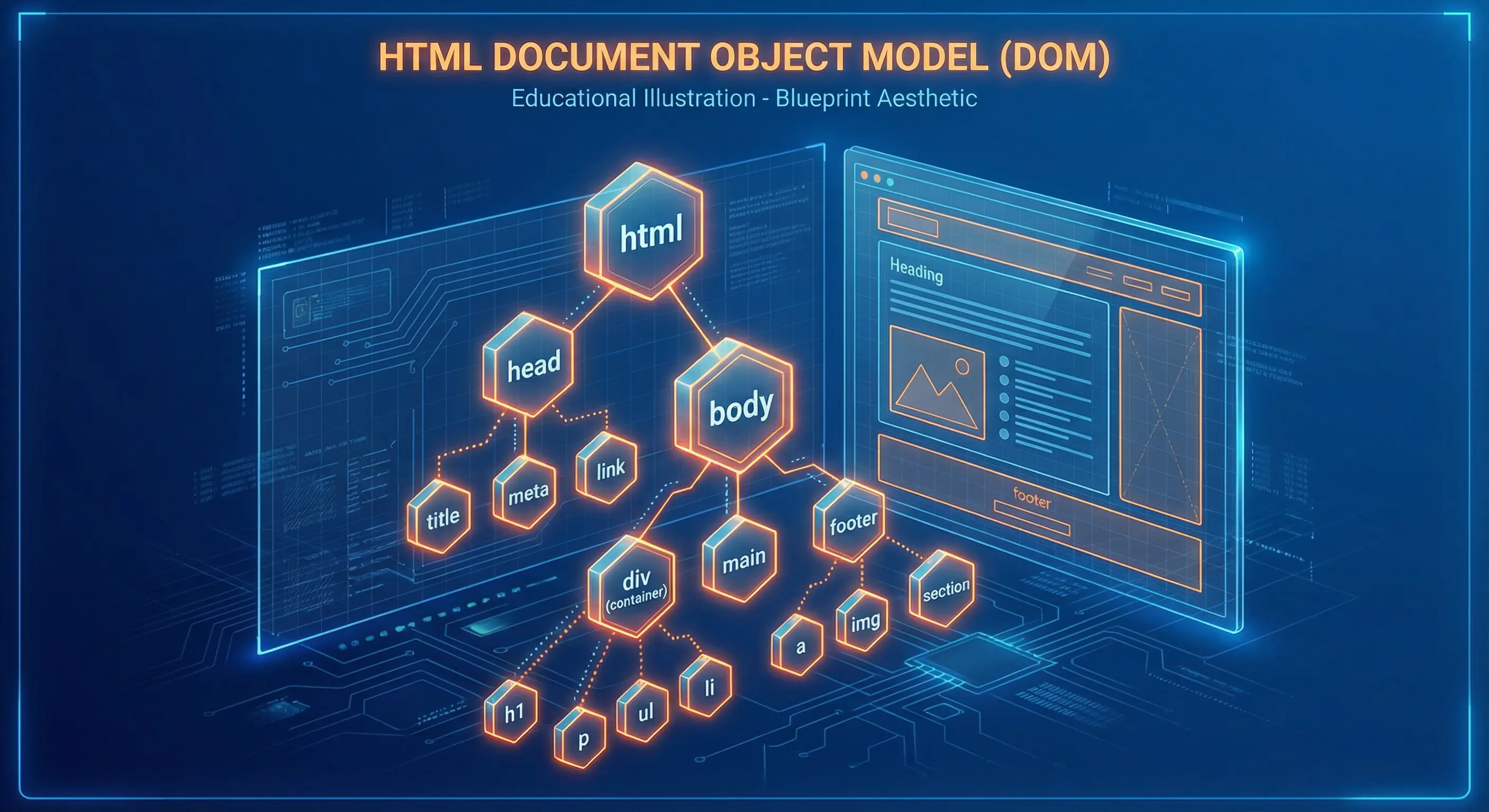
The Power of Semantic HTML
When I was starting out, I was tempted to use the <div> tag for everything. It works, but it's a terrible habit. This is where Semantic HTML comes in. It's about using tags that describe the *meaning* of the content, not just how it looks.
- <header>: Introductory content or navigational links.
- <nav>: A section of navigation links.
- <main>: The dominant content of the
<body>. - <article>: Independent, self-contained content.
- <footer>: Footer for a section or page.
Using semantic tags isn't just for show. It gives search engines like Google crucial context about your page, which helps with SEO. More importantly, it makes your site accessible to people who use screen readers. For a professional developer, this isn't optional—it's a core responsibility.
Interacting with Users: HTML Forms
Forms are how your application gets information from a user. From a simple search bar to a complex registration page, a well-built form is essential for a good user experience.
The main tag is <form>, which holds all your interactive controls. The most common control is the <input> tag, which can have different type attributes like text, email, or password.
<form action="/submit" method="POST">
  <label for="email">Email:</label>
  <input type="email" id="email" name="email" required>
  <button type="submit">Sign Up</button>
</form>One of the first "aha!" moments for me was realizing how much the browser can do for you. That required attribute is a simple example of built-in HTML validation. The browser handles the error message if the field is empty. And always, always use a <label> for every input and connect them with the for and id attributes. It's a small step that makes a huge difference for accessibility.
Step 2: Style with CSS - The Art of Presentation
CSS (Cascading Style Sheets) is what brings your HTML to life. If HTML is the skeleton, CSS is the skin, clothes, and personality. It controls everything visual: colors, fonts, spacing, layout, and animations.
You use CSS by "selecting" an HTML element and applying style "rules" to it. The "cascading" part is key—it means styles flow down from parent elements to children. This also means there's a system of rules (called specificity) that decides which style wins if you have conflicting rules. Understanding this cascade is what separates frustrating CSS sessions from productive ones. I remember spending 20 minutes debugging why my layout was broken, only to realize I missed a closing curly brace } in the previous block. It happens to everyone.
body {
    background-color: #f0f0f0;
    font-family: 'Poppins', sans-serif;
}
Modern Layouts: Flexbox and Grid
You might see older tutorials using things like float or tables for layout. Please don't. We now have two incredibly powerful tools for this: Flexbox and Grid.
- Flexbox (Flexible Box Layout): Designed for one-dimensional layouts (either a row or a column). It's perfect for aligning items within a container, distributing space, and handling dynamic content sizes.
- CSS Grid: A two-dimensional layout system (rows and columns). It allows you to create complex grid-based layouts with ease, defining explicit areas for headers, sidebars, and content.
My rule of thumb: use Flexbox for arranging items in a single line (like a navigation bar) and use Grid for overall page layouts. When building this portfolio site, Flexbox handled most of my layout needs, especially for the navigation bar and project cards.
A Note on Responsive Design
Your website won't just be viewed on a laptop. It'll be on phones, tablets, and massive monitors. Responsive Design is the practice of making your site look and work great on all of them. The main tool for this is the media query. It lets you apply different CSS rules based on screen size. This isn't an advanced topic; it's a fundamental skill you need from day one.
/* This rule applies only to screens 600px wide or smaller */
@media screen and (max-width: 600px) {
    body { font-size: 14px; }
}CSS Variables (Custom Properties)
One of the best modern CSS features is Custom Properties, or CSS Variables. They solve a huge problem: repeating values. Instead of writing the same color code #3498db in 20 different places, you define it once as a variable.
:root {
  --primary-color: #3498db;
  --spacing-unit: 16px;
}

button {
  background-color: var(--primary-color);
  padding: var(--spacing-unit);
}Now, if you want to change your primary color, you only have to edit one line. This is incredibly powerful and is the core concept behind how I implemented the light/dark mode toggle on this very portfolio.
Bringing Life to Your Site: Transitions
Abrupt changes on a webpage can feel clunky. CSS Transitions let you animate changes between states, like when a user hovers over an element. It's a simple way to make your UI feel more polished and professional.
.card {
  transition: transform 0.3s ease, box-shadow 0.3s ease;
}

.card:hover {
  transform: translateY(-5px);
  box-shadow: 0 10px 20px rgba(0,0,0,0.2);
}Just a couple lines of CSS can make your interface feel much more interactive and high-quality.
Step 3: Add Interactivity with JavaScript - The Brains of the Operation
If HTML is the skeleton and CSS is the skin, then JavaScript (JS) is the brain and nervous system. It's the programming language of the web that lets you add interactivity, logic, and dynamic behavior to your pages.
Anything that happens on a page after it loads—a popup appearing, content changing when you click a button, or submitting a form without a full page refresh—is almost always powered by JavaScript. It runs in the user's browser and gives you the power to manipulate HTML and CSS on the fly in response to user events.
document.querySelector('button').addEventListener('click', () => {
    alert('Hello!');
});
Modern JavaScript (ES6+)
The JavaScript you see in modern projects looks quite different from older code. That's thanks to updates to the language (starting with ES6 in 2015) that introduced features to make it cleaner and more powerful.
- Let and Const: Safer alternatives to
varfor declaring variables. - Arrow Functions: A shorter syntax for writing functions (e.g.,
(x) => x * 2). - Template Literals: Easy string interpolation using backticks (e.g.,
`Hello ${name}`). - Destructuring: Unpacking values from arrays or properties from objects into distinct variables.
You'll see these features everywhere in modern codebases, so it's crucial to get comfortable with them early on.
Talking to Servers: Asynchronous JavaScript
Websites don't exist in a vacuum; they need to talk to servers to get data. But network requests take time, and you don't want your entire webpage to freeze while it waits. This is where Asynchronous JavaScript comes in. The modern way to handle this is with the Fetch API and async/await syntax.
Here's a typical example of fetching data from a server:
async function getUserData() {
  try {
    const response = await fetch('https://api.example.com/user');
    const data = await response.json();
    console.log(data.name);
  } catch (error) {
    console.error('Error fetching data:', error);
  }
}The await keyword tells JavaScript to pause the function until the network request is complete, then continue. This makes asynchronous code look and feel synchronous, which is much easier to read and debug. It's a game-changer.
The Modern Developer Workflow
Writing code is only half the battle. Professional developers rely on a specific set of tools and workflows to stay organized, collaborate, and avoid breaking things.
Step 4: Use Version Control with Git & GitHub
Imagine you could create infinite save points for your code. That's what version control is. It lets you track every change, experiment without fear, and rewind to a working version if you mess something up. The industry-standard tool for this is Git.
And GitHub is the place where you store those projects online. It's a cloud backup for your code, a collaboration platform for teams, and a public portfolio for your work. Learning Git and GitHub is one of the first things any aspiring developer should do. It's a non-negotiable skill. For a deeper dive, check out my post on Mastering the Basics of Git & GitHub.

Essential Developer Tools for Beginners
Your web browser has a built-in Swiss Army knife for developers. You can open the "Developer Tools" by right-clicking anywhere on a page and hitting "Inspect" (or pressing F12). Learning to use these tools is how you'll debug everything.
- Inspector/Elements Panel: Lets you see the live HTML and CSS of a page. You can even edit the styles in real-time to experiment with changes.
- Console: This is where JavaScript errors appear, and you can use
console.log()to print messages and debug your code. - Network Panel: Shows all the files (images, scripts, etc.) that a webpage loads, helping you diagnose slow-loading pages.
I spend a huge amount of my development time in these tools. Getting comfortable with them is the fastest way to level up your debugging skills.
Building a Professional Website
Getting your code to work is the first step. The next step is making it professional. This means building sites that are accessible to everyone, fast, and easy for search engines to find.
Building for Everyone: An Intro to Web Accessibility (A11y)
Web Accessibility (A11y) is the practice of making your websites usable by as many people as possible, including those with disabilities who might use screen readers or rely on keyboard navigation. This isn't an afterthought or an "extra feature"—it's a fundamental part of professional web development.
- Use Semantic HTML: Use tags like
<nav>,<main>, and<button>for their correct purpose. This gives structure and meaning for screen readers. - Add Alt Text to Images: Always provide descriptive
alttext for images (e.g.,<img src="..." alt="A developer writing code on a laptop">) so visually impaired users understand the content. - Ensure Color Contrast: Make sure your text is easily readable against its background. Tools are available online to check your color contrast ratios.
- Enable Keyboard Navigation: Ensure all interactive elements like links, buttons, and form fields can be accessed and used with only a keyboard.
Building with accessibility in mind from the beginning almost always results in a better product for everyone. It forces you to write cleaner HTML, which improves SEO and makes your site easier to maintain.
SEO Basics for Developers
What's the point of building a great website if no one can find it? Search Engine Optimization (SEO) isn't just a marketing task; your code has a direct impact on how well your site ranks on Google.
- Meta Tags: Ensure every page has a unique
<title>and<meta name="description">. - Performance: Fast-loading sites rank higher. Optimize images and minify your CSS/JS.
- Mobile-Friendliness: Google uses mobile-first indexing, so your site must work well on phones.
- Structured Data: Use JSON-LD (like in this blog post) to help search engines understand your content.
Web Performance Optimization
We've all abandoned a website because it was too slow. In web development, performance is a feature. A slow site is a broken site. You should be thinking about performance from the very beginning.
- Image Optimization: Images are often the heaviest part of a page. Use modern formats like WebP which offer better compression than JPEG or PNG. Always define
widthandheightattributes to prevent layout shifts (CLS). - Minification: When you deploy, use tools to remove whitespace and comments from your HTML, CSS, and JS files. This reduces file size and speeds up download times.
- Lazy Loading: Don't load images that are off-screen. Adding
loading="lazy"to your image tags tells the browser to only download them when the user scrolls near them. - Lighthouse: Use the "Lighthouse" tab in Chrome Developer Tools to audit your site. It gives you a score for Performance, Accessibility, and SEO, along with specific actionable advice on how to improve.
The best tool for this is built right into your browser. Open the Chrome DevTools, go to the "Lighthouse" tab, and run an audit. It will give you a detailed report card on your site's performance, accessibility, and SEO, with concrete steps on how to fix any issues. I run it constantly while building.

Understanding the Browser: The Critical Rendering Path
To get good at performance, you need to understand what the browser is doing under the hood. When it loads your page, it follows a sequence called the Critical Rendering Path to turn your code into visible pixels.
- DOM Construction: It parses HTML to build the Document Object Model (DOM).
- CSSOM Construction: It parses CSS to build the CSS Object Model.
- Render Tree: It combines the DOM and CSSOM to figure out what is actually visible on the screen (e.g., `display: none` elements are excluded).
- Layout: It calculates the exact position and size of every element relative to the viewport.
- Paint: It fills in the pixels (colors, images, borders).
The key takeaway here is that CSS and JavaScript can "block" rendering. A big CSS file in your <head> will stop the page from appearing until it's downloaded. A JavaScript file will do the same. This is why we have strategies like putting <script> tags at the end of the <body> or using the defer attribute—to let the visual content render first.
Deploying Your First Website
Okay, you've built something cool on your computer. Now how do you get it on the internet for everyone to see? This is called "deployment." It used to be a huge pain, but now it's incredibly easy. Services like Netlify (which I use for this portfolio) and GitHub Pages are game-changers. You just connect your GitHub repository, and they handle the rest. Your site is live in minutes, and it even redeploys automatically every time you push a change.
Where to Go From Here
Once you're comfortable with the basics, the best way to solidify your skills is to build something real.
What to Build Next? (Simple Project Ideas)
Watching tutorials is one thing, but the real learning happens when you start building. You'll run into bugs, get frustrated, and then have that amazing feeling when you finally figure it out. Here are some classic projects to get you started:
- A Personal Portfolio: The very site you're on is a portfolio! It's the perfect project to showcase your skills.
- A To-Do List App: A great way to practice JavaScript for adding, deleting, and marking items as complete.
- A Simple Calculator: This will challenge your logic and event handling skills in JavaScript.
- A Weather App: Learn how to fetch data from a third-party API and display it on your page.
Beyond the Basics: Next Steps
After you've built a few things with "vanilla" HTML, CSS, and JS, you'll start to notice repetitive patterns. This is where frameworks come in. However, you don't need React to start learning web development. Mastering vanilla JavaScript first will make learning frameworks much easier later. Once you're ready, tools like React help you build complex interfaces efficiently. For documentation, MDN Web Docs is the bible, and sites like freeCodeCamp offer amazing, free courses.
Conclusion
Getting into web development can feel like drinking from a firehose, but it's a skill you build one step at a time. Focus on these fundamentals, be patient with yourself when you get stuck (you will!), and most importantly, build things. The best way to learn is by doing. You'll be surprised at how quickly you can go from a blank file to a fully deployed website.
If you have questions, feel free to reach out via the contact form below or check out my other blog posts for additional insights!
Disclaimer: This article was written and edited by Pranav R. AI tools were used for assistance with drafting and visual assets.